
-
Support Centre
-
Quick Videos
-
- How To Limit The Number Of Items Per Order
- How To Enable The Pre-Authorization Security Deposit At Delivery
- How To Upload The Site Background Picture
- How To Enable Sale Taxes For Used SKU Items
- How To Set The Time Range Duration
- How To Set The Hourly And Daily Durations
- How To Set A Seasonal Duration
- How To Enable/Disable The Duration
- How To Set A Season Period
- How To Set The Activity Range
- How To Display The Price Of The Item Including Tax
- How To Turn Off Displaying The Packages Tab On The Order Form
- How To Set The Order Limitation
- How To Change The Walk-In Category Visibility
- How To Hide The Product Description
- How To Enable/Disable The Re-Ordering Process
- How To Enable/Disable Multiple Renters
- How To Enable/Disable The Availability Calendar On The Order Form
- How To Enable/Disable Skipping The Credit Card Entry
- How To Enable/Disable Sending Emails To The Additional Renters
- How To Display The Product Option On The Order Form
- Use Parameters On The Waiver
- Enable Preauthorization
- Show Remaining Articles (8) Collapse Articles
-
- How To Set A Customized Email Opening/Closing Paragraph
- How to setup CC emails?
- How To Set On-Screen Notifications On The Order Form
- How To Set Auto SMS
- How To Enable/Disable Sending The Closing Order Email
- How To Enable/Disable Sending The Cancelled Order Email
- How To Create A New Message Template
- Edit SMS Reminder For Return Items
- Set SMS Reminder Triggers For Rent Order’s “Start and Finish”
- Set Auto SMS For Delivered Orders
-
- How To Track Products Based On SKU
- How To Track Products Based On Quantity
- How To Set The Security Deposit For The Products
- How To Enable The Daily Drop-off/Pickup During Rental Period
- How to assign products attributes group?
- How to upload category image?
- How to bundle rental items?
- How to assign renter attributes?
- Add Short Product Details
- Add Detailed Product Description
-
Getting Started
-
Business Information
-
Location Settings
-
Categories
-
Products
-
Payment Setting
-
Pricing
-
Activity Settings
-
Availability Calendar
-
Customers
-
Reservation
-
Delivery
-
Staff Management
-
Mobile App
-
Quick Sale
-
SMS
-
Tours
-
Reports
-
FAQs
-
- How can I update my credit card information on the client portal?
- How can I see my Rentrax invoice?
- How I can reset my password when I forgot it?
- How can I change my subscription plan?
- How Can I Subscribe to Sending SMS?
- How can I put my subscription on park mode?
- What are the web addresses I need to keep in mind for my Rentrax system?
-
- I Have a Few New Products, How Can I ADD Them to My Inventory?
- For some of my changes, the system is asking for a password? What is it and how I can set it?
- How can I change one existing SKU in the system?
- How Can I Create a Simple Coupon?
- How can I add a new price for my new products?
- How can I set my business email address and the one I want to receive confirmations email with?
- How do we delete a user?
- Which report can we use to see coupons that have been created?
- Why do some of the inventories in my availability calendar have stars on the side?
- How can I change my password?
-
- How can I add a size option to my product on the order form?
- How can I hide a product on my online booking page?
- We are closed on some days. How can I disable these dates on my online booking page?
- I added price templates, but they are not showing up on the order form
- How can I add a message to the order form?
-
-
Coupons
Learn about setting up Business Name, Upload Business & Invoice logos & Taxes.
Define your business name, logos & taxes at the business level. Business name & logos are common for all the locations whereas taxes can be enabled/disabled in the pricing level based on each location.
Click on the gear icon and select Business settings from the sidebar menu.
1, General Information
- Business Name: Enter your business name.
- Site Logo: Click on “Choose file” and upload the logo and it will show the uploaded site logo on all the Order forms(Online, Walk-in, Backend, Phone) and back-end. Ensure that your picture is not too large (the picture’s dimensions should be approximately 200×200 pixels).
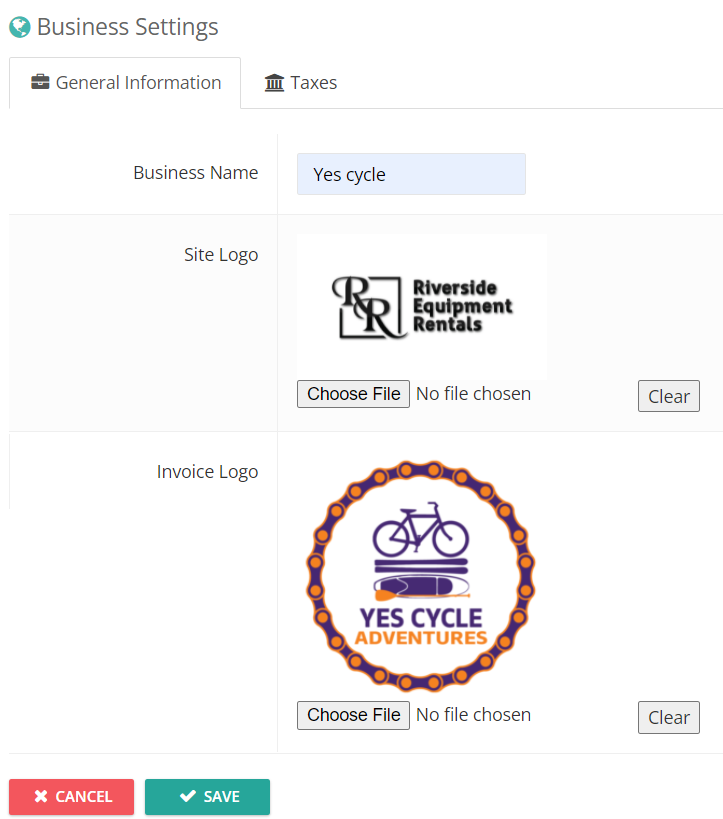
- Invoice Logo: Click on “Choose file” and upload the logo and it will show the uploaded invoice logo on all the email invoices(Pending order, confirmation order, Back-end orders & Phone orders) that you deliver to your customers and the print receipts. Ensure that your picture is not too large (the picture’s dimensions should be approximately 200×200 pixels).
Use the “CLEAR” button to erase the uploaded picture.
Click on Save.
2, Taxes
Any charging and payment calculations always need to consider and include Taxes. Here we have Tax Configurations for you to manage the tax items for all locations.
Define all the location taxes here and have flexibility
To add one new tax item, please click the NEW TAX button. Fill in a Name and Amount (percentage). To check the Active checkbox (or not) and click the SAVE button then to keep it.
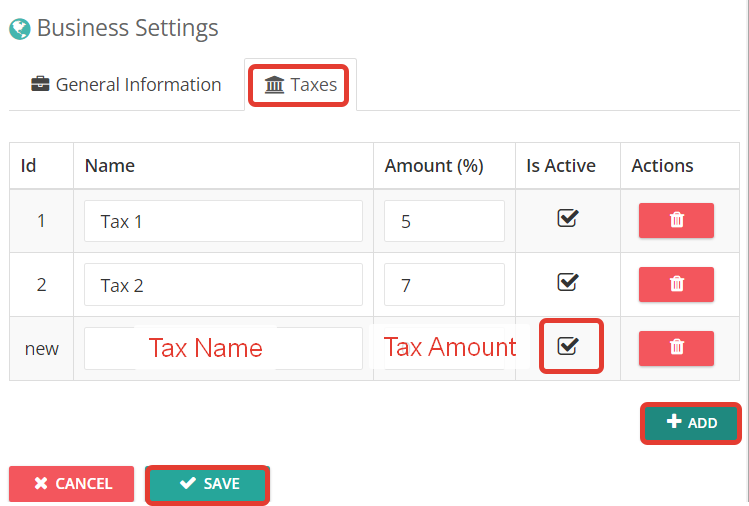
- To edit one tax item, please click the EDIT button to the one you want to change. Remember to click the SAVE button after any changes are done.
- To remove one item, just select the item and click the DELETE button for it.
All tax items defined should be complied with the requirements of your country and region. If you mark the items as Active status, it will allow Rentrax software to use these items in the price calculation for your rental orders and reservations.
NOTE: Once the system is live with reservations, don’t delete the taxes instead make it inactive.